Keep your screenshots
organized by project.
Bring in your screenshots. Give them useful names and notes.
Find them again when you need them.
Start with the screenshots
you already have.
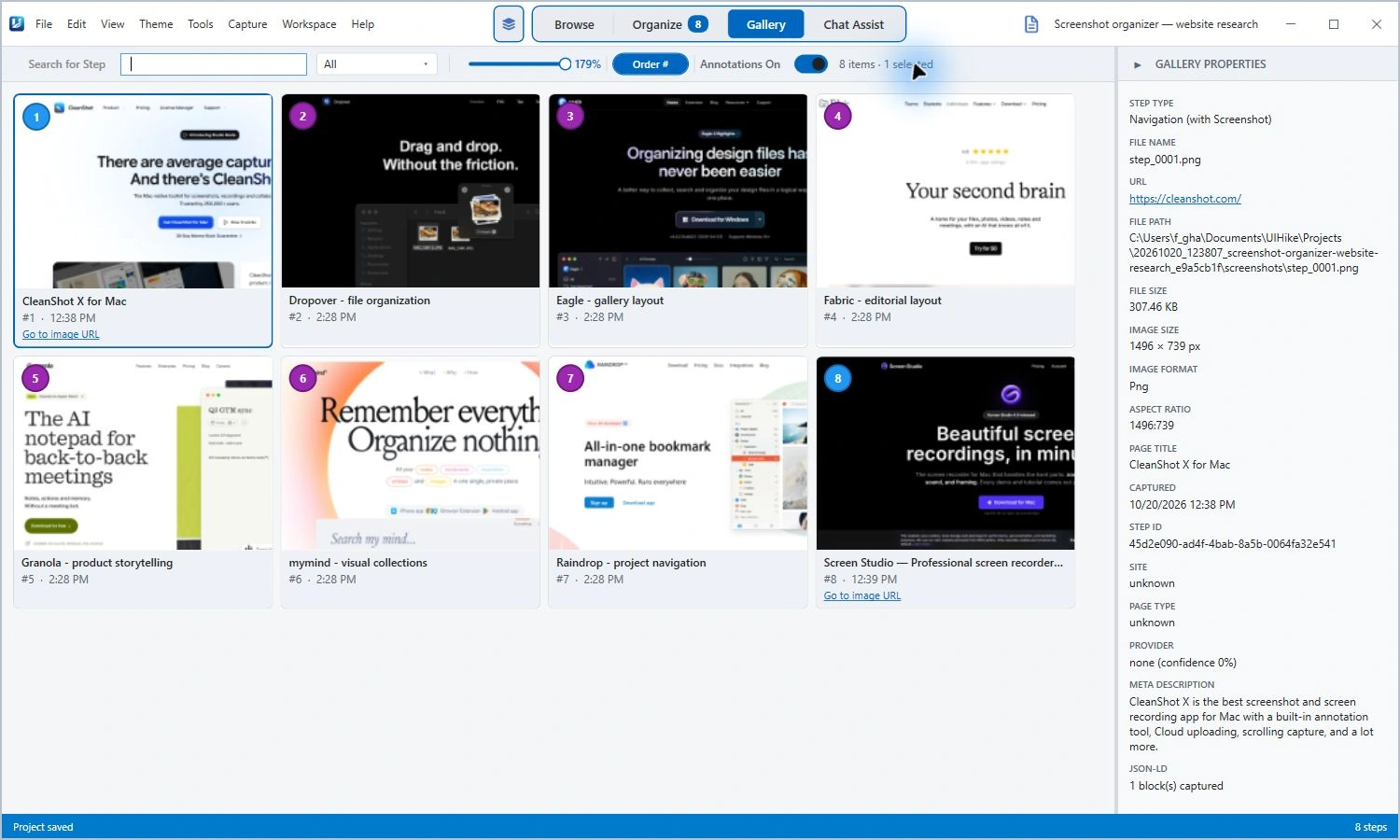
Drop existing images into a UIHike project. Each image becomes a capture you can name, describe, and put in order.
You can add new captures from UIHike’s built-in browser or your Windows desktop, too.
Get UIHike for WindowsWorking in Chrome? Get the extension.A project for each
thing you’re working on.
Keep website references separate from customer issues.
Open a project and see the captures that belong to it.
Website research
Customer issue
Trip planning
Find it by the details
you remember.
Search the Windows gallery by title, description, URL, or tag. Filter to images when you just want your screenshots.
Try searching by title. “Cleanshot” narrows this collection to the matching capture.
Download for Windows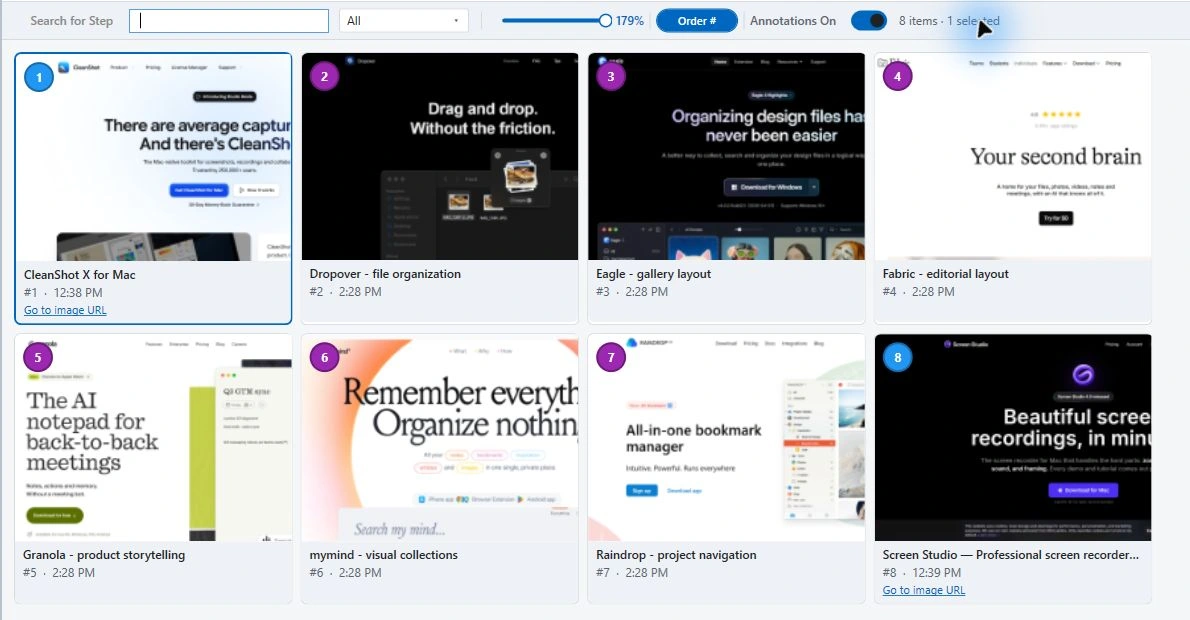
Actual desktop screenshots. Choose a view to compare.
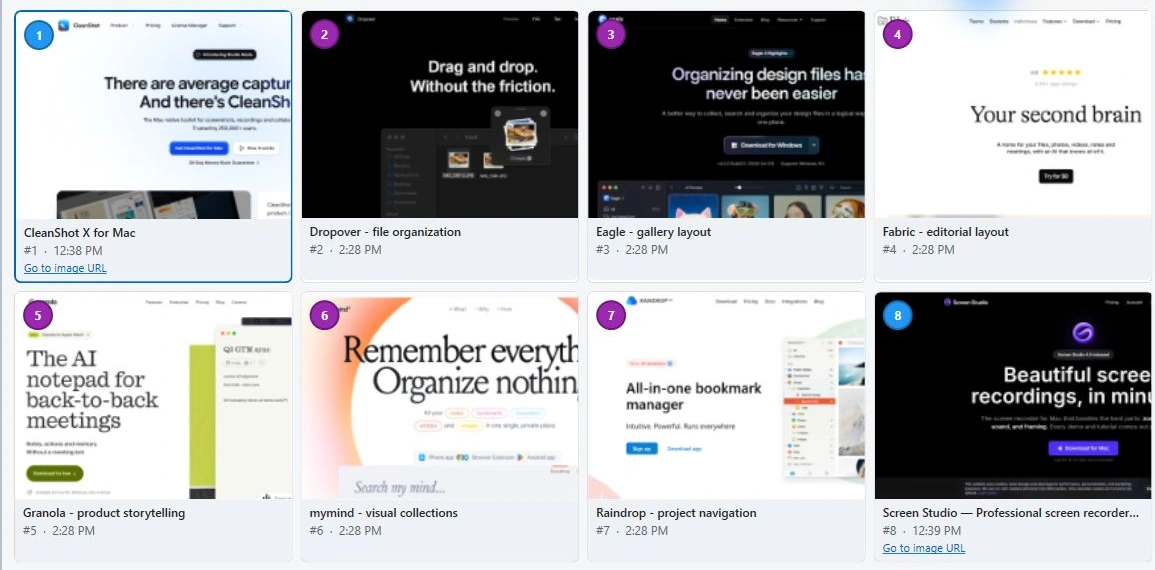 The screenshots you saved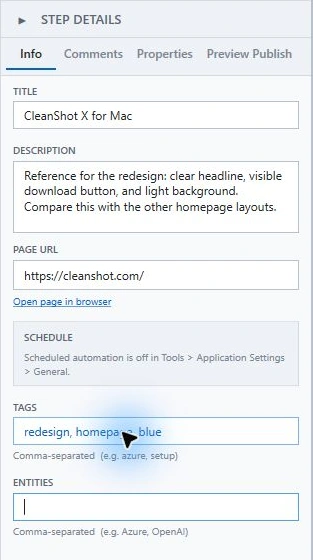
Remember why
you saved it.
“Screenshot 42” doesn’t tell you much. Give a capture a title, add a note about what matters, and use tags that make sense to you.
Browser captures keep the source link beside the image. When someone else needs the collection, publish the project and send one link.
Download for WindowsLocal projects need no account. Publishing uses UIHike Cloud.A few useful
details.
Something else you’d like to know?
Get in touch.
Can I organize screenshots I already have?
Yes. Add existing image files to a UIHike project. You can also capture new screenshots from the built-in browser or your Windows desktop.
What can I search for?
The Windows gallery searches capture titles, descriptions, URLs, and tags. You can also filter the gallery to show images, Markdown, or PDFs. This is a search of saved fields, not OCR of text inside an image.
Can I keep screenshots on my computer?
Yes. You can create and save local projects without an account. Cloud saving and publishing are optional.
Does an imported screenshot include a source link?
An imported image does not automatically include its original website URL. Browser captures keep their source URL, and you can add your own description and tags.
Can I use the Chrome extension?
Yes. The extension captures browser pages into projects and accepts dropped image files. Its project switcher searches project names. The gallery search shown on this page is in the Windows desktop app.
Can I share a project?
Yes. Publish a project and send its link. Readers can open the published page in their browser without an account. Publishing requires connecting UIHike to your cloud account.
Start with one project.
Add your screenshots.
Keep the images, links, and notes you’ll need again.
Download for WindowsFree Windows beta. Start locally without an account.