Combine screenshots
into one PDF.
Keep your screenshots in a UIHike project, arrange them, and export one PDF.
Download for Windows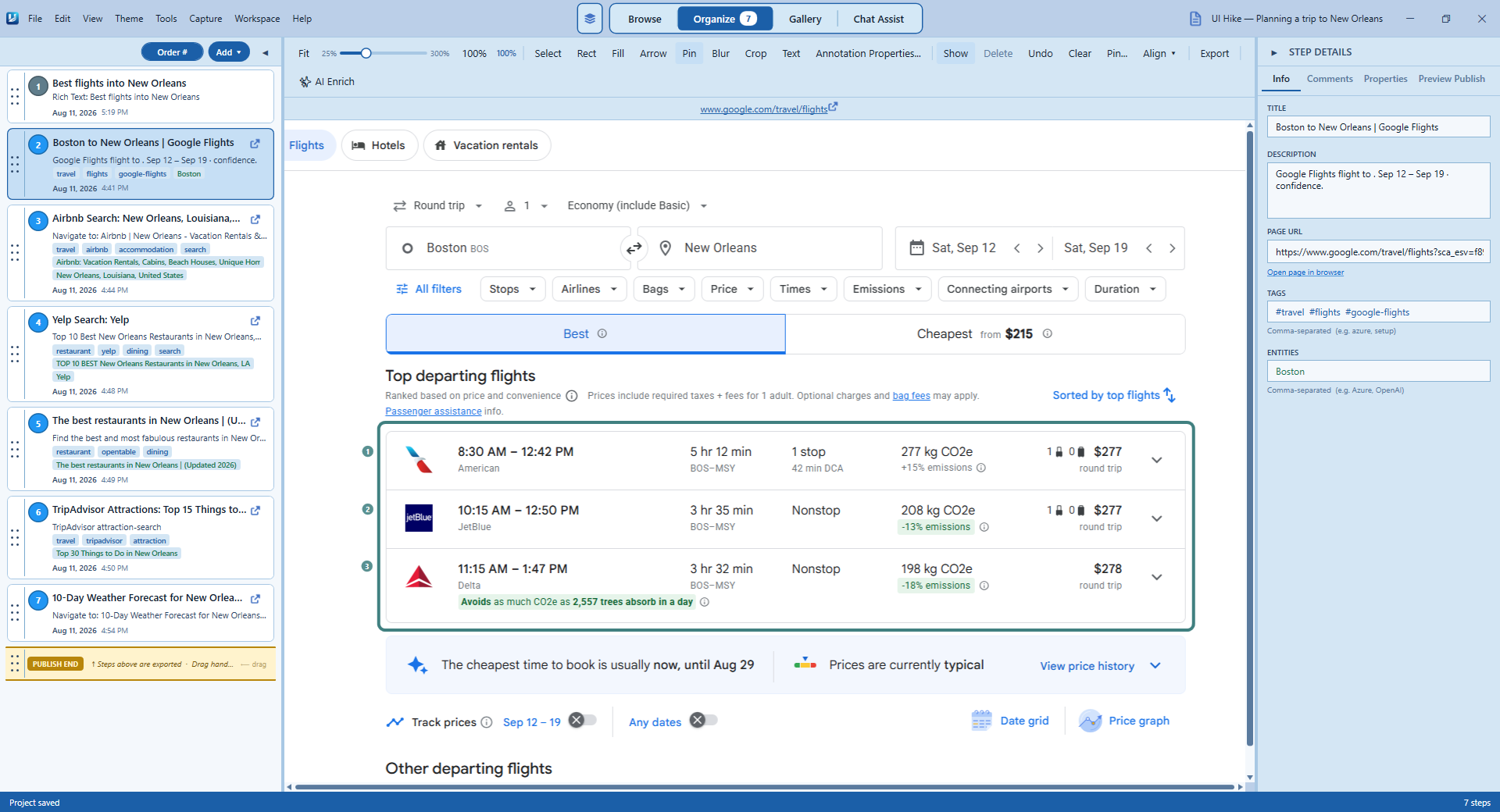
From a folder of screenshots
to one file you can send.
No copying images into a document.
No resizing every page by hand.
Add your screenshots
Add existing screenshots to a UIHike project, or capture new ones from your browser or desktop.
Choose the page order
Arrange your captures in the order you want the reader to see them.
Save as PDF
Choose Print, select Microsoft Print to PDF, and save the file to send to your teammate.
Send one PDF.
Keep the screenshots in order.
Show a teammate where to find a file. Send screenshots of an issue to support. Keep a copy of the pages you need.
Keep related screenshots together so the reader can follow them in order.
Download UIHikeNeed to explain
what’s in the screenshot?
Keep your screenshots in a UIHike project. Add instructions in Markdown, mark what to click, and hide private information before sharing.
Capture more from UIHike’s built-in browser or your Windows desktop. Come back and edit the project later.
Download for WindowsFree Windows beta. Start locally without an account.## Open the team folder Select **Team files**. Before you start: - Connect to the company VPN - Have your login ready
Questions about
screenshots to PDF.
A few things to know before you start.
How do I combine screenshots into a PDF?+
Add your screenshots to a UIHike project, arrange the captures in order, and export the project to PDF.
Can I capture new screenshots too?+
Yes. Use UIHike’s built-in browser or capture your Windows desktop. Each capture becomes a step in your project.
Can I add instructions to the screenshots?+
Yes. Edit each step in Markdown, add notes and links, and annotate screenshots before exporting.
Can I edit the project later?+
Yes. Keep the UIHike project, make changes when you need to, and export an updated PDF.
Can I share a link instead?+
Yes. Publish the project and send its link. Readers can open it in their browser without an account.
Your screenshots.
One PDF.
Keep your captures together in UIHike.
Arrange them, add notes, and save as PDF.